Highlights vs. Whites: What Actually Separates the Two Sliders
SLR Lounge's Kishore Sawh breaks down why only the Whites slider moves your white point, why Highlights recover detail, and why slider-order folklore is "rubbish."
One slider moves your white point; the other cannot. That single distinction, laid out by Kishore Sawh in SLR Lounge's widely read primer on Lightroom's Develop module, separates the Highlights and Whites controls — and it explains why photographers who confuse the two keep hitting a ceiling in their retouching.
The piece, originally published in March 2016 and still circulating as a reference, opens with a blunt diagnosis of how many working photographers learn the craft. Sawh argues that digital-era trial and error can produce good images and even careers, but "you will hit a ceiling." In his experience that ceiling "comes rather quickly" and centers on limiting efficiency and hampering creative potential.
What do the two sliders actually control?
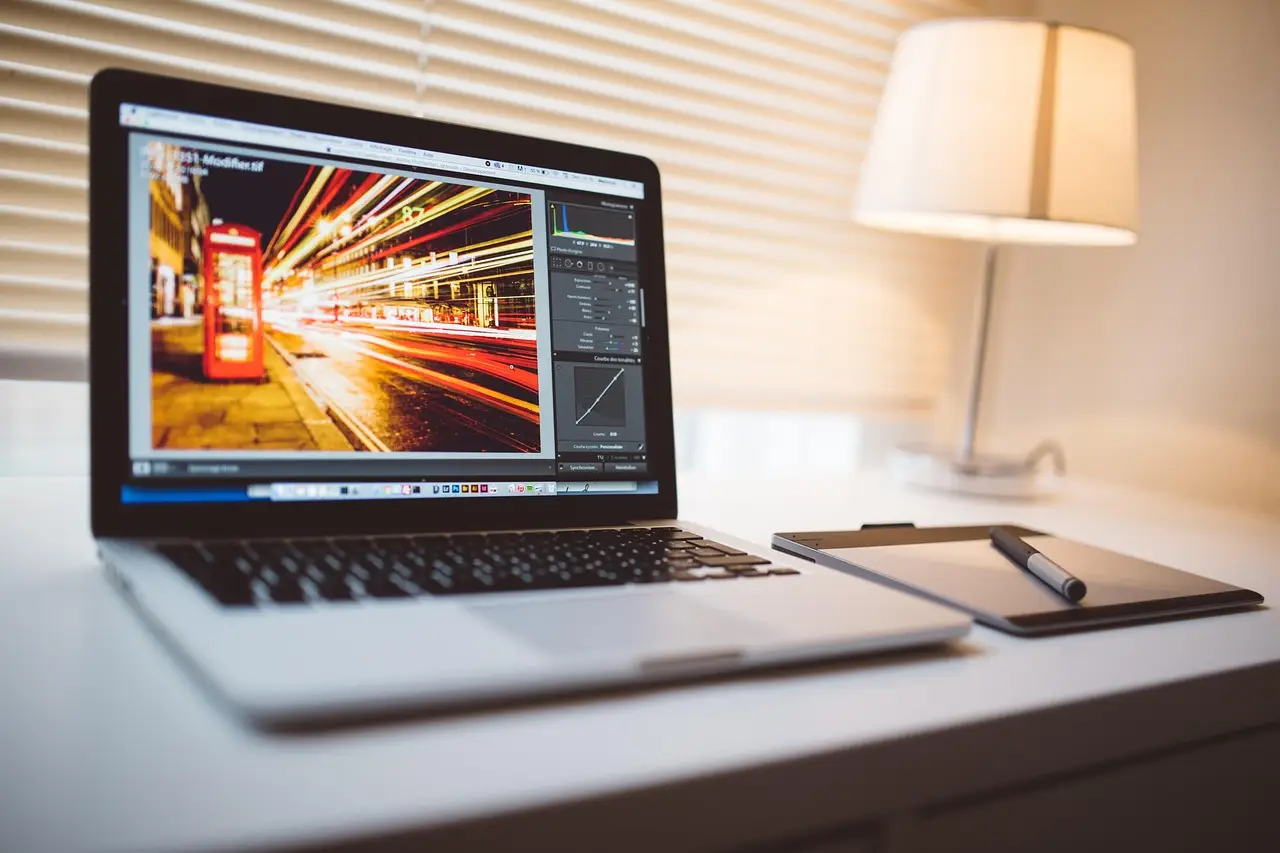
Both Highlights and Whites live in the Basic panel of Lightroom's Develop module and in Adobe Camera Raw. Because both engines share the same processing core, Sawh notes, learning one in theory and practice carries directly over to the other.
He frames the relationship memorably: think "less identical twins, and just a cousin who looks a hell of a lot like you." Both sliders lighten or darken the brightest pixels in a file, but they operate over different tonal ranges.
Whites control the white point — the absolute brightest pixels in the image. Highlights govern a slimmer band of tonal values beneath it, and the Highlights slider "will not adjust the white point in the image — only the White slider will do that."
This leads to his practical recommendation: set Whites first. Establish the white point, then let the Highlights slider "play within the range the Whites sets."
How can you prove it yourself?
Sawh offers a repeatable test any practitioner can run on a raw file:
- Hold alt/option while dragging the Whites slider to reveal the clipping mask.
- Set Whites to a point with just a little clipping.
- Then max out the Highlights slider the same way.
- The clipping, he writes, "will not really exceed those set of the Whites."
The exercise demonstrates the hierarchy: Whites define the ceiling; Highlights work beneath it.
When should you reach for Highlights?
The test allows a sharper definition than the common shorthand that highlights are simply "the brightest area in a photo." Sawh instead defines highlights as "the brightest parts of an image wherein can still be found some degree of detail; that is to say, it's not a washout."
That is why the Highlights slider recovers cloud detail effectively. It becomes the control for deciding the degree to which remaining detail in the bright zones gets emphasized or suppressed.
What are the cautions around Whites?
Whites change overall image brightness along with the white point, and the change is global. The adjustments are, in Sawh's description, "essentially algorithmic exercises in changing contrast."
He warns that Whites can disturb tones throughout an image in ways Highlights will not — colors shift, "and it's just a mess." Used deliberately, though, the slider sculpts: his suggested exercise is to take a slightly underexposed portrait, drop exposure another stop, then raise Whites to see how much "pop" the combination yields.
Both controls depend on raw data. Applied to a JPEG to recover bright detail, Sawh writes, they'll "basically just end up with gray."
Is the slider-order rule real?
No, and Sawh says so plainly. Some instructors claim Adobe ordered the Basic panel sliders to dictate the sequence of adjustment. "This is rubbish," he writes.
He also touches on the Tone Curve as an extension of the sliders, with more precision and depth — though he finds little reason to push Whites and Highlights through it. One curiosity he flags: adjusting the curve's Points Editor, where values can be picked and locked, leaves the Whites and Highlights sliders apparently unmoved, suggesting further headroom — "though I don't know why you would want to."
The primer sits alongside SLR Lounge's companion piece on Shadows versus Blacks, part of a fundamentals series the site positions as a resource for practitioners who want answers rather than guesswork. Sawh invites readers to email or comment with questions, signalling the series will keep building out the technical canon.
Key points
- Only the Whites slider adjusts the white point; Highlights cannot, per SLR Lounge's March 2016 primer.
- An alt/option clipping-mask test shows maxed Highlights will not exceed clipping set by Whites.
- Whites and Highlights share the same engine across Lightroom's Develop module and Adobe Camera Raw.
- Applied to JPEGs, both sliders "basically just end up with gray" when recovering bright detail.
- The claim that slider order dictates adjustment order is, in the author's words, "rubbish."
Source: slrlounge.com
James Calloway
Show full bio
Market editor covering people, launches and day-to-day practice in Photography exhibitions, photographers, photo books, festivals and awards at Lens Gazette.